Twine

Category: Pitch deckIndustry: Technology A sales deck with bold, technology feel to it. Dark backgrounds with alternating white / light theme, using abstract digital technology background as a supporting visual. Clean, minimalistic, modern look with lots of air and space and simple, direct layout with lots of contrast.

Graded

Category: Investor deckIndustry: Education A modern PowerPoint pitch deck made for an educational startup in online tutoring. Clean, sleek layout, blue tones and white and crisp, bold elements give this presentation a tech feel. Lots of charts, iconography and graphics help visualize the data. Overall light theme with lots of white space and colorful elements.

legal-i

Category: Investor deckIndustry: Technology A sleek and modern pitch deck design for investors with a dark, technology feel, for a startup in law accelerating medical insurance cases. A PowerPoint presentation with a clean, crisp and professional look and dark blue tones, gradients and isometric illustration on the cover slide. Subtle iconography on alternating dark and … Read more

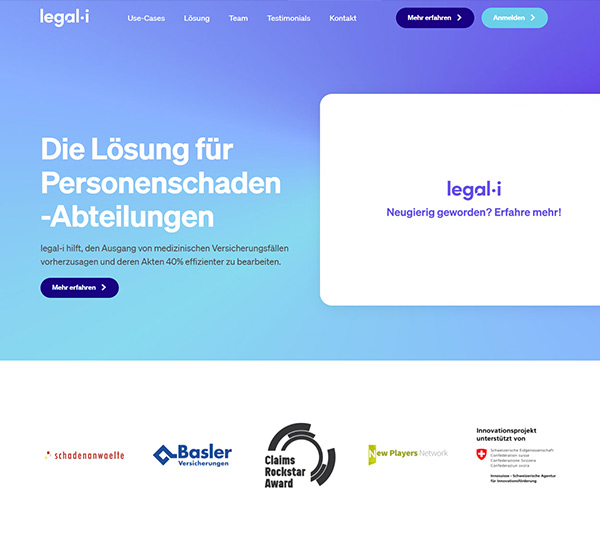
legal-i website

Category: Web Design Industry: Insurace Law A clean and sleek website design for a startup in medical insurance law. With a tech feel to it, it features lots of white space, airy layout, blue tones, yet with friendly and fresh feel. Playful icons and alternating white and light grey sections give it a light and … Read more

General instructions:

  1. Open the exercise in your browser and read the task and the content on the left side of the screen. 
  2. You will be editing the content on the right side of the screen.
  3. In order to do that, right click on the exercise page that you opened and go to ‘Inspect’.
  4. Go to ‘Sources’ in the top bar and if you cannot see an empty CSS sheet where you can type the code, press Ctrl + P and start typing ‘styl’ in the search bar. Then press enter to open the CSS sheet.
  5. Follow the notes on the left and start typing your CSS code to see the changes online!
  6. Important! Do not refresh the page while you are editing the code, as these changes are in preview mode only and you can see them immediately, as soon as you write a line of functioning code.
  7. Use the custom classes in the notes on the left side of the screen, as well as ‘Elements’ on the top bar of the ‘Inspect’ to target and style the classes and elements. For example, you can enable the small icon on the top left of the ‘Inspect’ window (‘Select an element in the page to inspect it’) to find the default class name of the element you want to edit, while you are in the ‘Elements’ tab.

Tips:

  1. If the code is not showing any changes, try adding the !important tag at the end of the line before closing it (before the “;” symbol) and see if it works then.
  2. Don’t forget there are usually more ways to achieve the same result. Be creative!
  3. If you get stuck, write your email address in the form on the left side of the screen and you will get the solution (CSS code) in your email.

Sources:

  1. You can find a lot of tutorials on my youtube channel. 
  2. Watch the tutorial on how to solve these exercises here.

Please check your email and stay tuned for updates on the course.

We will notify you shortly when it’s available for presale.